If you have ever looked at a modern website’s source code and wondered how assistive tools actually interpret the design, you are not alone. Most web developers and business owners look at terms like WCAG, ADA compliance, and ARIA attributes and immediately feel overwhelmed by a sea of technical jargon.
The confusion around web accessibility does not exist because making a website accessible is inherently difficult. It exists because the guidelines are usually written like legal textbooks or dry academic documentation rather than practical engineering steps. Many teams treat accessibility as an afterthought, stacking uncoordinated code snippets together and hoping for the best.
In real workflows, true digital accessibility is not about checking boxes or hiding bad structure behind hidden code layers. It is about understanding exactly how your content communicates with assistive technologies to create a seamless experience for every single visitor.
🏗️ How the Browser Accessibility Tree Processes Web Content
To understand web accessibility, you must look past raw HTML code and focus on how a web browser builds the Accessibility Tree to expose information to assistive tools like screen readers and refreshable braille displays.
[ Raw HTML Markup ]
        │
        ▼
[ Document Object Model (DOM) ]
        │
        ▼
[ Accessibility Tree ] ◄─── (Where ARIA modifies name, role, & state)
        │
        ▼
[ Assistive Technology ] (Screen Readers, Braille Displays)
The Accessibility Tree is a specialized, programmatically generated subset of the standard Document Object Model (DOM). While the DOM contains every single element, style, and script required to visually render a page, the browser actively strips away visual styling to pass only semantic data to the Accessibility Tree. Assistive technologies rely entirely on this tree to determine four critical data points for every onscreen element:
Name: The specific textual identity or label of the component (e.g., “Submit Order”).
Role: The structural classification defining what the element is (e.g., button, link, checkbox).
State: The current functional condition of the widget (e.g., expanded, checked, disabled).
Value: The specific data payload held by the element, common in form inputs or progress bars.
When a screen reader speaks to a user, it is not parsing your raw CSS or un-semantic Javascript strings. It is reading the flattened structural snapshot provided by the Accessibility Tree. If an element does not exist correctly within this tree, it functionally does not exist for an assistive technology user.
🌉 What is ARIA and How Does It Bridge the Semantic Gap?
Accessible Rich Internet Applications (ARIA) is a specialized technical specification created by the World Wide Web Consortium (W3C) to inject missing semantic metadata directly into the browser’s Accessibility Tree.
<!-- Visual HTML (Meaningless to the Accessibility Tree) -->
<div class="custom-toggle" onclick="toggleOption()"></div>

<!-- Augmented with ARIA (Perfectly understood by Assistive Tech) -->
<div role="switch" aria-checked="true" aria-label="Enable notifications" tabindex="0"></div>
In an ideal development ecosystem, native HTML elements handle all semantic definitions automatically. However, modern web applications frequently rely on complex JavaScript frameworks to transform generic elements like <div> and <span> into interactive user interface components like custom modal windows, slider bars, and accordion menus. Because a standard layout <div> has zero inherent meaning within the Accessibility Tree, screen readers cannot communicate its purpose to a user.
ARIA solves this breakdown by acting as a translation bridge. It allows developers to explicitly define the exact Role, State, and Property of any custom-built element. By using these attributes correctly, you can rewrite how an element registers inside the Accessibility Tree without altering its visual layout or CSS styling on the screen.
🏛️ Who Came Up With ARIA and Where Are the Standards Kept?
The ARIA standard was conceived in the mid-2000s through a joint collaboration of major tech hardware manufacturers, browser developers, and accessibility advocacy groups working under the Web Accessibility Initiative (WAI) branch of the W3C.
The master, authoritative registry for these technical standards is permanently hosted and updated in the public W3C WAI-ARIA Specification Repository. This living document serves as the global blueprint that browser engines (like Chromium, WebKit, and Gecko) and screen reader software software developers follow to ensure cross-platform compatibility.
In practice, keeping track of changing browser APIs and compliance standards takes time away from growing your actual business. That is why our team at VerseOne.ai handles the heavy lifting through specialized Web Accessibility Remediation Services to bring digital storefronts and workflows into complete alignment with global standards.
🗂️ The Four Technical Categories of ARIA Attributes
To build a reliable interface, you must understand that the ARIA specification is not a random collection of tags. It is divided into four distinct technical categories designed to modify the Accessibility Tree based on specific interactive conditions.
Many development teams fail audit checks because they mix these categories incorrectly. In real workflows, each group serves an exact structural purpose.
Widget attributes define the real-time, changing condition of custom interface components. Whenever your JavaScript alters the visual appearance of a widget (such as revealing a hidden menu or checking a box), a matching widget attribute must update programmatically inside the Accessibility Tree.
aria-expanded: Tells assistive tools whether a collapsible panel, dropdown menu, or accordion layout is currently open (true) or closed (false).
aria-checked: Reflects the selection state of a custom checkbox or radio button (true, false, or mixed).
aria-disabled: Signals that an interactive element exists visually but is currently non-functional.
aria-invalid: Flags that the data entered into a form field fails your system’s validation rules.
📢 2. Live Region Attributes (Handling Real-Time Content Updates)
By default, screen readers only announce content when a user actively navigates to an element. If a web page dynamically updates content on a different part of the screen via background scripts, visually impaired users will miss it entirely. Live regions force the browser to announce updates immediately without moving the user’s keyboard focus.
aria-live: Sets the urgency level for announcements. Using aria-live="polite" waits until the user finishes typing or reading, while aria-live="assertive" interrupts the user for critical errors.
aria-atomic: Determines if the screen reader should speak the entire updated container (true) or only the specific text string that changed (false).
aria-busy: Notifies assistive software that a section is currently reloading or fetching data, preventing the reader from announcing an incomplete layout.
Relationship attributes build invisible semantic bridges between completely separate HTML elements on a page. These are crucial when an action performed on one element directly manipulates, controls, or describes an element located elsewhere in the DOM.
aria-controls: Establishes a direct programmatic link between a controlling element (like a tab button) and the container it populates (like a tab panel).
aria-owns: Rearranges the visual hierarchy for assistive devices by forcing a parent-child relationship between two elements that cannot be nested together within the raw HTML markup.
aria-posinset and aria-setsize: Defines an element’s exact numerical position and total count within a custom list or data feed when standard <ol> or <li> tags cannot be used.
🌍 4. Global ARIA Attributes (Universal Markup Support)
Global attributes are a unique subset of properties that can be safely applied to any native HTML element on your website, regardless of whether a specific ARIA role is present.
aria-hidden: Completely removes an element and all its children from the Accessibility Tree. This is ideal for hiding decorative graphics, background illustrations, or redundant text that would confuse screen reader navigation.
aria-current: Indicates the active item within a set of identical links, such as marking the specific page a user is currently browsing within a main navigation menu.
🏷️ ARIA Labeling vs. ARIA Descriptions: Knowing When to Use Which Tool
The absolute foundation of web accessibility is ensuring every interactive element has a clear identity. The ARIA specification provides three distinct attributes to handle this, but they are designed for very different scenarios.
Use aria-label when an element has no visible text label on the screen, and you need to pass a direct text string straight to the Accessibility Tree.
The most common real-world application is an icon-only button. For example, a button containing only a graphical “X” icon is visually obvious to sighted users, but a screen reader will ignore it or read generic code. Applying aria-label="Close modal" ensures the true function is spoken clearly.
🔹 When to Use aria-labelledby
Use aria-labelledby when the text that should label your interactive element is already visible somewhere else on the page.
Instead of typing out a manual string, you pass the exact HTML id of the existing visible text element. This ensures that if your marketing or copywriting team updates the visible text on the page in the future, the screen reader label automatically updates with it, preventing structural desynchronization.
🔹 When to Use aria-describedby
Use aria-describedby when an element already has a primary name, but requires secondary, supportive context, instructions, or validation rules.
Unlike the previous two attributes which define what the element is, aria-describedby maps to a distinct paragraph or block of text explaining how to use it. A classic example is a form input field where the primary label is “Password”, but a small paragraph underneath states “Must contain at least 8 characters.” Linking that paragraph via aria-describedby ensures the user hears the rules right after the field name is announced.
Most automated scanning systems can find missing labels, but they cannot tell you if your live regions or interactive states are coded properly. If you are dealing with broken user flows or complex interface problems, our engineering team at VerseOne.ai provides specialized AI Automation & Custom Technical Help to streamline your systems and eliminate structural errors.
⚖️ Is ARIA Mandated for WCAG 2.2 Level AA Compliance?
A common misconception among web developers is that individual ARIA attributes are explicitly written into accessibility law. In reality, no single ARIA attribute is universally mandated by the W3C Web Content Accessibility Guidelines (WCAG 2.2 Level AA).
Because the WCAG framework is designed to be completely technology-agnostic, it outlines what functional accessibility milestones your website must achieve, not the exact language syntax you must use to get there. You can build a 100% compliant web asset without ever touching ARIA, provided you use perfect, semantic, native HTML markup.
However, ARIA becomes functionally mandatory the exact microsecond your interface deviates from native HTML tags. If your project utilizes custom layout blocks to handle interactive behaviors, specific ARIA attributes are required to satisfy key WCAG Success Criteria:
Success Criterion 1.3.1 – Info and Relationships (Level A): Structural groupings and relationships shown visually must be programmatically identifiable. If you build custom tabs or accordion menus using generic markup, you must use attributes like role="tab" and aria-expanded to maintain this programmatic relationship in the Accessibility Tree.
Success Criterion 4.1.2 – Name, Role, Value (Level A): Every user interface control must expose its exact identity, current operational state, and calculated name. When native buttons or inputs are swapped for custom script-driven components, attributes like aria-label or aria-selected become your only pathway to legal compliance.
Success Criterion 4.1.3 – Status Messages (Level AA): When dynamic content, form success messages, or real-time alert texts populate onscreen, the interface must notify assistive technology users without forcing their focus away from their current task. This requires the explicit use of role="status", role="alert", or custom aria-live regions.
🏗️ The Ideal Native Alternative Labels (And How They Combine With ARIA)
In web accessibility engineering, the universal directive is simple: The absolute best ARIA is no ARIA at all. Native HTML tags have deep, built-in browser mappings that automatically feed structural context straight into the Accessibility Tree without the risk of script failures or syntax typos.
🌟 The Baseline Native Elements to Prioritize
Before you reach for any ARIA properties, ensure your codebase maximizes these native structures:
Standard Nested Text: Plain text placed natively between elements like <button>Submit</button> or <a href="...">Home</a> automatically sets the accessible name.
The Form <label> Element: Explicitly mapping a form text element using the for attribute to match an input’s id (e.g., <label for="email">).
The Visual Image alt Attribute: Used exclusively inside the <img> tag to give immediate semantic text translations to visual imagery.
The Fieldset <legend> Tag: Provides an overarching structural description to an entire nested group of related inputs, like radio button lists.
🤝 The Strict Rules of Inheritance: Combining Native Labels with ARIA
You can safely mix native tags and ARIA elements on the same page, but you must understand how the browser calculates the final outcome using the Accessible Name and Description Computation.
⚠️ The Total Override Rule
When you place an ARIA labeling attribute directly onto an element that already contains native visible text, the ARIA attribute acts as a clean slate. It completely erases and replaces the native text within the browser’s Accessibility Tree.
<!-- Sighted users will see the word "Go". -->
<!-- Screen reader users will ONLY hear "Search the official catalog". -->
<button aria-label="Search the official catalog">Go</button>
🛡️ The Safe Combination Rule
If your goal is to augment an existing native element rather than destroy its identity, use aria-describedby instead of an explicit label. This attaches extra technical details or secondary verification instructions without overriding the main semantic name of the element.
<!-- Screen reader calculation order: "Username, input field. Enter your registered business email address." -->
<label for="usr">Username</label>
<input type="text" id="usr" aria-describedby="field-tip">
<p id="field-tip">Enter your registered business email address.</p>
Navigating the nuance of WCAG 2.2 rules while maintaining your visual brand identity can feel incredibly tight. At VerseOne.ai, our Web Accessibility Remediation (ADA/WCAG Compliance) specialists manually restructure underlying enterprise architectures, ensuring your site achieves complete semantic alignment without breaking your front-end design workflows.
🛠️ The Custom UI Blueprint: Putting ARIA and Native Elements Into Production
When you move past basic structural elements and begin coding custom interactive components—such as modal dialog boxes, navigation menus, or custom form tools—you must manually stitch together multiple ARIA attributes to prevent total accessibility failures.
To help you safely execute these in your production workflows, look at how the code translates directly into the browser’s Accessibility Tree for a standard interactive component.
🗂️ Production Layout Example: A Custom Accordion Component
<!-- The Accordion Header (Controls Visibility and States) -->
<button
  id="accordion-trigger-1"
  class="accordion-header"
  aria-expanded="false"
  aria-controls="accordion-panel-1">
  💼 What services does VerseOne.ai offer?
</button>

<!-- The Accordion Content Panel (Holds the Structural Data) -->
<div
  id="accordion-panel-1"
  class="accordion-panel"
  role="region"
  aria-labelledby="accordion-trigger-1"
  hidden>
  <p>We provide full-scale Web Accessibility Remediation, AI workflow integration, and digital storefront setup solutions.</p>
</div>
🔍 Behind the Scenes of This Pattern:
The Button Trigger: Because we use a native <button>, the browser automatically makes it keyboard navigable and assigns a button role in the Accessibility Tree.
aria-expanded="false": This tells a visually impaired user that the content panel is currently collapsed. When your JavaScript detects a user click, it toggles this value to true at the exact same moment it updates the visual CSS layout.
aria-controls="accordion-panel-1": Builds an explicit programmatic link between the button trigger and the separate layout panel below it.
role="region": Upgrades the standard layout <div> into a high-level layout landmark inside the Accessibility Tree, making it easily scannable by screen readers.
aria-labelledby="accordion-trigger-1": Instead of duplicating text strings, the panel automatically pulls its structural name directly from the text nested inside the button trigger.
📋 The Essential Web Accessibility Architecture Checklist
Before launching any new interactive layout, run through this baseline engineering checklist to confirm your ARIA and native elements function harmoniously:
[ ] Keyboard Baseline: Can every single interactive custom element on the screen be reached using only the Tab key, and activated using the Enter or Spacebar key?
[ ] No Shadow Elements: If you have used aria-hidden="true", have you confirmed that it does not accidentally contain any active, keyboard-focusable elements?
[ ] Role Complement Check: If you added a custom ARIA interactive role (like role="switch" or role="checkbox"), have you actively modified your JavaScript listeners to handle the matching state updates (aria-checked)?
[ ] Strict Syntax Validation: Have you verified your attributes against the official specification to ensure you are not assigning widget properties to invalid layout tags (such as trying to pass aria-checked onto a role="heading")?
[ ] Name Computation Priority: Are you certain that your inline aria-label strings are not unintentionally overwriting critical visible text nodes on the page?
📈 Systems Over Tool-Stacking: The Real Path to Compliance
At the end of the day, individual code snippets and quick-fix automated overlay plug-ins do not fix accessibility issues. In real digital systems, deep compliance cannot be achieved by spraying random ARIA tags over a broken visual framework.
True digital equality happens when your fundamental underlying architecture is built with clarity, logic, and consistent programmatic systems from the ground up.
If your laptop feels like it’s wading through waist-high mud every time you open a browser, you aren’t alone. Most people assume a slow computer means it is time for the graveyard.
In practice, the hardware is perhaps a outdated, but often fine overall. It’s the software that has become heavy, bloated, and a bit too interested in what you’re doing for its own sake (to data mine you for ads, or worse).
If you want to breathe actual life back into a machine to make it feel alive again, the most impactful move is changing the ground it walks on.
The Ubuntu (or Lubuntu) Pivot
Switching from Windows to a Linux-based system like Ubuntu is the closest thing to a “reset” button for your digital life.
It is free, modern, and the literal backbone of the internet. If you’ve used a web browser in the last decade, you’ve interacted with Linux systems (without even knowing it).
The Pros:
It’s free!
It is incredibly secure and doesn’t spend resources spying on you with background AI or telemetry.
It looks stylish and feels snappy, even on older chips.
For older machines or those with limited RAM (like my 13 year-old: Acer Aspire S7, love it!!), Lubuntu is the “light” version that strips away the flash to give you pure performance.
The Cons:
Some Windows-specific programs won’t work natively (but there are alternatives just about for every functionality, like Libre Office, more on that later).
You might need a tool called Wine to bridge the gap for certain apps.
It is generally not the first choice for hardcore gamers, but for a workhorse machine? It is gold.
The ChromeOS Flex Alternative
If the idea of Linux feels a bit too technical, there is ChromeOS Flex.
This turns your laptop into a glorified Chromebook. It is essentially just a fast, secure browser. If 90% of your work happens in Google Docs, Canva, or a CRM, this makes an old laptop feel brand new in about ten minutes. (I’m a linux guy, so take it as the last option.)
Why This Matters for Your Workflow
Most businesses struggle because their tools are fragmented and their hardware is lagging. And on top of that, annual software subscriptions (like for Windows and Office) are probably eating into your earnings.
So it’s best to focus on building systems that actually connect. Sometimes, that starts with making sure the physical tool in your hands isn’t the bottleneck, or perhaps finding much better free alternatives. Stick with me, I will show you more ways to squeeze more performance for your home or work machine, and reclaim more of your time!
Resurrecting Your Laptop: Part 2, The RAM “Magic Trick” and Browser Bloat 🚀
If you’re working on an older machine, you’ve likely hit the “8GB Wall.” I know I did, and was about to spend a few thousand dollars on a new performance computer to run my engineering software.
8GB is not a lot: you open a few heavy tabs, a spreadsheet, and maybe a video call, and suddenly everything freezes. If you own something like an Acer Aspire S7 (i know, i know), you can’t even buy more RAM because it is soldered directly onto the board. 😵💫
In practice, you don’t actually need to buy more hardware to get more breathing room.
Therefore: The SWAP Space Strategy
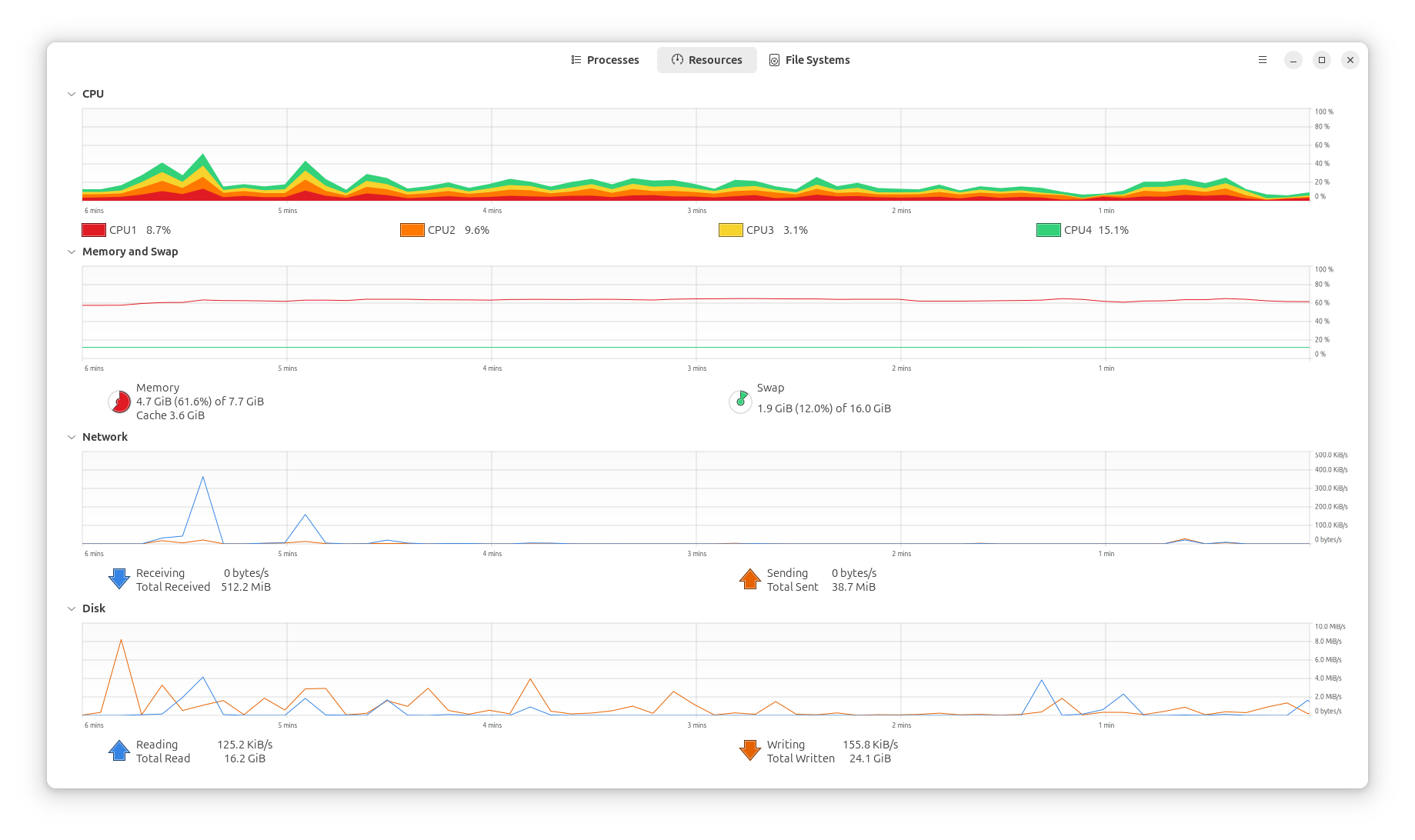
Even if your physical RAM is capped at 8GB, you can use a technique called SWAP to effectively double it.
SWAP is a dedicated space on your hard drive that the computer uses as “emergency” memory. When your 8GB of fast RAM gets full, the system offloads the long-term, background tasks into the SWAP partition.
Why this works:
It prevents the “Out of Memory” crashes that restart your laptop. (This happened to me so many times, watching the red memory inching towards the top of the graph, where the system would inevitably freeze 😵)
Modern SSDs are fast enough that you almost don’t notice the hand-off.
It gives you 16GB of functional space for the price of… nothing!!
Managing the Browser Monster
Most of our work happens in the browser, and the browser is usually what’s eating your resources.
If you use Brave, you have a massive advantage: SuspendedTabs. This feature puts tabs you aren’t looking at “to sleep,” freeing up tons of CPU and memory. AMAZING!
Pro Tip: Fine-tuning Memory Saver
You can actually customize exactly how aggressive this is.
Type brave://settings/system into your address bar.
Look for Memory Saver.
You can toggle it to Aggressive to kill background tasks sooner, or add specific “Always Active” sites (like your CRM or Gmail) so they never go to sleep.
Lightening the Load with LibreOffice. This is big!
If you are still using heavy, bloated office suites that take 30 seconds just to open a document, consider LibreOffice.
It is free, open-source, amazing, and lacks the background “telemetry” and update-checkers that slow down mainstream software. It’s snappy, handles Word and Excel files perfectly, and respects your hardware’s limits. 💯
Systems Over Brute Force
I see this a lot: people trying to solve a workflow problem by throwing more expensive hardware at it.
Usually, the bottleneck isn’t the machine, it’s the way the machine is configured. A well-tuned 8GB laptop will often outperform a “powerful” machine that is bogged down by unmanaged tools.
It is about making the system work for you, not the other way around.
Resurrecting Your Laptop: Part 3, The Physical “Surgery” 🛠️
Sometimes, the bottleneck isn’t the software at all. It’s the physical reality of a machine that’s been living in the real world for a few years.
If your laptop fans sound like a jet engine taking off, or if the bottom of the case feels hot enough to fry an egg, your hardware is likely “throttling.”
In practice, your computer is intentionally slowing itself down so it doesn’t melt. Here is how to fix it without being a certified technician.
The Magic of an SSD Upgrade
If your laptop still uses a traditional mechanical hard drive (the kind that spins), swapping it for a Solid State Drive (SSD) is the single most impactful thing you can do. Do it! Or I will.
It is the difference between waiting three minutes for a boot-up and waiting eight seconds.
Why this works:
Mechanical drives have moving parts that wear out and slow down over time.
SSDs use flash memory, which is nearly instantaneous.
You can often find a 500GB or 1TB SSD for under $50, making it the highest ROI hardware upgrade available.
The “Simple” Dusting
It sounds almost too basic to be a “tech tip,” but dusting your laptop is transformative. Just do it outside 😶🌫️
Laptops pull in air to stay cool. Over time, that air brings in dust, pet hair, and lint, which creates a “blanket” over your internal components.
How to do it right:
Use a can of compressed air. Again, do it outside, these have nasty chemicals.
Aim for the exhaust vents and the intake fans.
For the brave: pop off the back cover or battery cover or memory cover (if your model allows), which lets you give it a deeper clean.
Thermal Paste: The Final Boss
If you’ve cleaned the dust and it’s still running hot, the “thermal paste” (the goop that transfers heat from your processor to the cooling fan) might have dried out.
Replacing this with a fresh, pea-sized drop of high-quality paste can drop your temperatures by 10–15 degrees Celsius. It’s a 15-minute job that can restore 100% of your CPU’s original speed.
Hardware Health is Business Health
So, we need to look at technical debt the same way we look at physical hardware.
If your “engine” is clogged (whether it’s a messy database or a dusty laptop fan) the system can’t perform. What actually matters is ensuring the foundation is clear so you can focus on the work that moves the needle.
Resurrecting Your Laptop: Part 4, The Clean Sweep & Creative Second Lives ♻️
In this final stage, we look at what to do if you’re staying on Windows, or if the laptop is simply ready to graduate from being a “daily driver” to a specialized tool.
Even a machine that feels “old” for modern web browsing can be an absolute powerhouse when given a singular, dedicated purpose.
Stripping the Windows Bloat
If you aren’t ready to jump to Linux yet (consider it tho), you need to strip Windows down to its bare essentials. Out of the box, Windows is packed with background “telemetry” (fancy talk for spying) and services you’ll never use. You can have half of your RAM memory eaten up, just when Windows powers on.
The Power User Tools:
O&O ShutUp10++: This is a free, “portable” tool (meaning you don’t even have to install it) that lets you toggle off the hidden background processes that eat your CPU cycles.
BleachBit: Think of this as the industrial-strength version of a standard cleaner. It finds and deletes deep-seated system junk that normally clogs up your drive and slows down file indexing.
Giving It a Second Life
If the hardware is truly too tired for the modern web, stop asking it to do everything and give it one specific job.
Some Practical “Retirement” Roles:
The Dedicated Security Hub: Plug in a few cheap webcams and use software like Agent DVR to turn the laptop into a 24/7 home security monitor.
The Private Cloud: Why pay for Dropbox? Use a tool like Tonido or Nextcloud to turn that old laptop into a private server where you can access your files from anywhere in the world.
The Media Station: Hook it up to your TV, install Plex, and let it serve as a dedicated movie and music hub for your entire house.
What This Means for Your Business
Most people look at a slow computer and see a liability. In reality, it’s an underutilized asset.
We should approach business systems with this exact mindset. You don’t always need to buy the newest, most expensive AI agent or automation tool. Often, the most powerful move is simply optimizing the resources you already have and making sure they are working in harmony. Incremental change is good.
So Let’s Build Your System
If you’re tired of fighting with fragmented tools or hardware that can’t keep up with your vision, that is where I come in.
From technical consultations to building custom AI workflows that actually make sense for your business, I’ll help you clear the “dust” out of your operations.