
Ever had 15 LibreOffice windows open and your system starts acting like a tired toddler? 💤
You want to restart, but the thought of digging through five different folders to find those exact “.ods” files is a nightmare.
LibreOffice is amazing (seriously), but it has one giant flaw: it doesn’t have a “Store Session” button.
I got tired of the manual hunt. So, I wrote a tiny Python tool to do the heavy lifting for me. 🛠️
It scans your open files, saves the list, let’s you edit what you actually want to keep, and reopens them one-by-one so your RAM doesn’t whine. 💥
The “Session Saver” Script
Paste this into a file named libre.py.
python
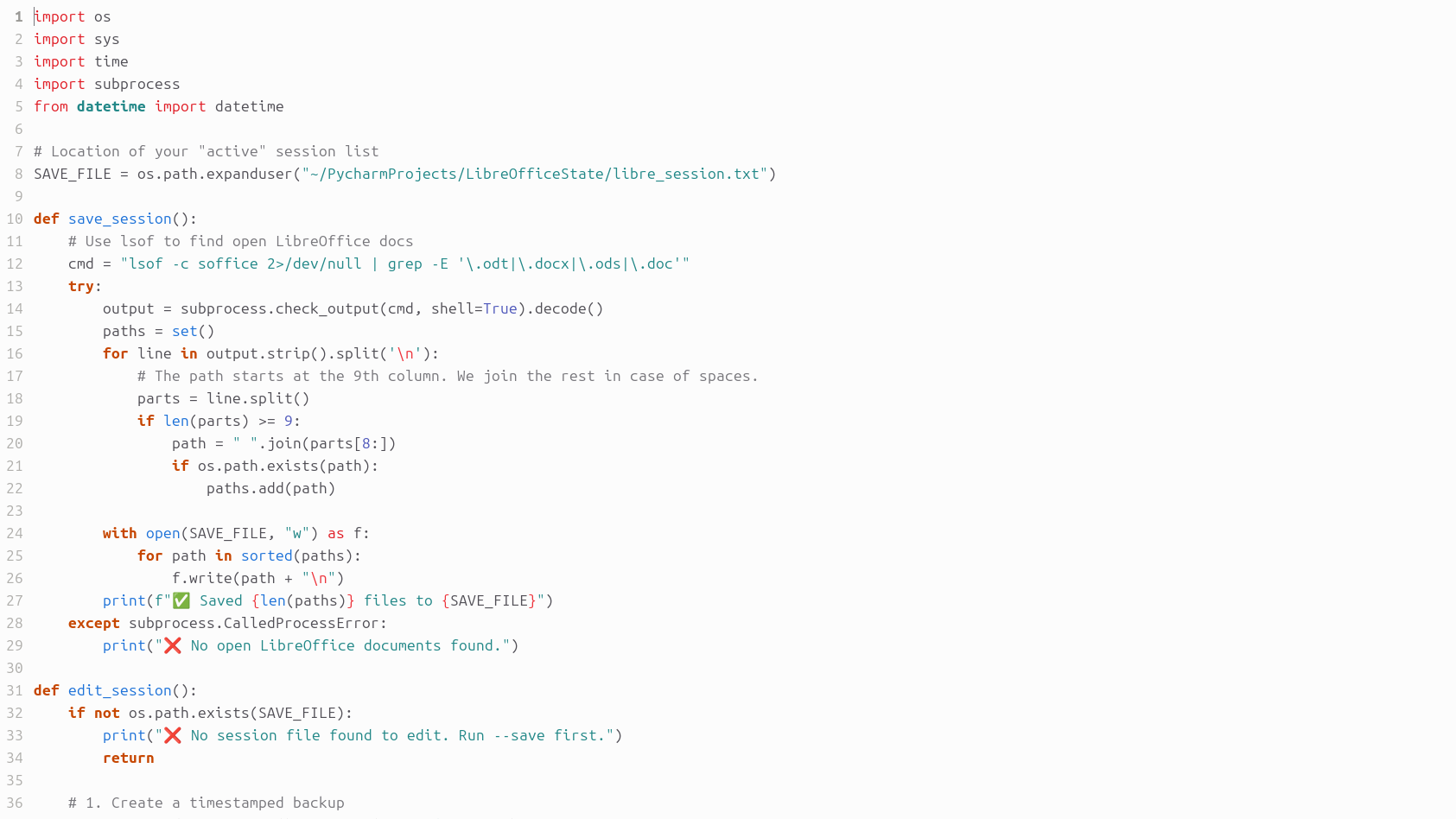
import os
import sys
import time
import subprocess
from datetime import datetime

# Location of your "active" session list
SAVE_FILE = os.path.expanduser("~/libre_session.txt")

def save_session():
    # Use lsof to find open LibreOffice docs
    cmd = "lsof -c soffice 2>/dev/null | grep -E '\.odt|\.docx|\.ods|\.doc'"
    try:
        output = subprocess.check_output(cmd, shell=True).decode()
        paths = set()
        for line in output.strip().split('\n'):
            parts = line.split()
            if len(parts) >= 9:
                path = " ".join(parts[8:])
                if os.path.exists(path):
                    paths.add(path)

        with open(SAVE_FILE, "w") as f:
            for path in sorted(paths):
                f.write(path + "\n")
        print(f"✅ Saved {len(paths)} files to {SAVE_FILE}")
    except subprocess.CalledProcessError:
        print("❌ No open LibreOffice documents found.")

def edit_session():
    if not os.path.exists(SAVE_FILE):
        print("❌ No session file found. Run --save first.")
        return

    # 1. Create a timestamped backup
    timestamp = datetime.now().strftime("%Y%m%d_%H%M%S")
    backup_file = os.path.expanduser(f"~/libre_session_{timestamp}.txt")
    subprocess.run(["cp", SAVE_FILE, backup_file])
    print(f"📦 Backup created: {os.path.basename(backup_file)}")

    # 2. Open in Ubuntu's default editor
    print(f"📝 Opening session list for editing...")
    subprocess.run(["xdg-open", SAVE_FILE])

def restore_session():
    if not os.path.exists(SAVE_FILE):
        print("❌ No save file found.")
        return

    with open(SAVE_FILE, "r") as f:
        paths = [line.strip() for line in f if line.strip()]

    if not paths:
        print("📭 Session file is empty.")
        return

    print(f"🚀 Restoring {len(paths)} files with a 3s delay...")
    for path in paths:
        if os.path.exists(path):
            print(f"Opening: {os.path.basename(path)}")
            subprocess.Popen(["libreoffice", path])
            time.sleep(3)
        else:
            print(f"⚠️ Skipping: {path}")

if __name__ == "__main__":
    if "--save" in sys.argv:
        save_session()
    elif "--edit" in sys.argv:
        edit_session()
    elif "--restore" in sys.argv:
        restore_session()
    else:
        print("Usage: python3 libre.py --save | --edit | --restore")
How to use it like a pro
First, make it a quick command. Open your .bashrc and add an alias.
alias libre='python3 /path/to/your/libre.py'
Now, when you are ready to shut down, just type libre --save in your terminal.
If you realized you don’t actually need that “Budget 2019” sheet open, run libre --edit. It quickly backs up a copy, and then pops open your text editor so you can trim the list. ✍️
After you reboot, run libre --restore.
The script waits 3 seconds between each file. This gives your CPU a chance to breathe so your desktop doesn’t lock up. 🌬️
No more manual searching. No more lost context. Just clean, automated productivity. 🚀
Leave a Reply